 Sho
Sho3. Python Binary Files, CSV Files, Zipping and Unzipping
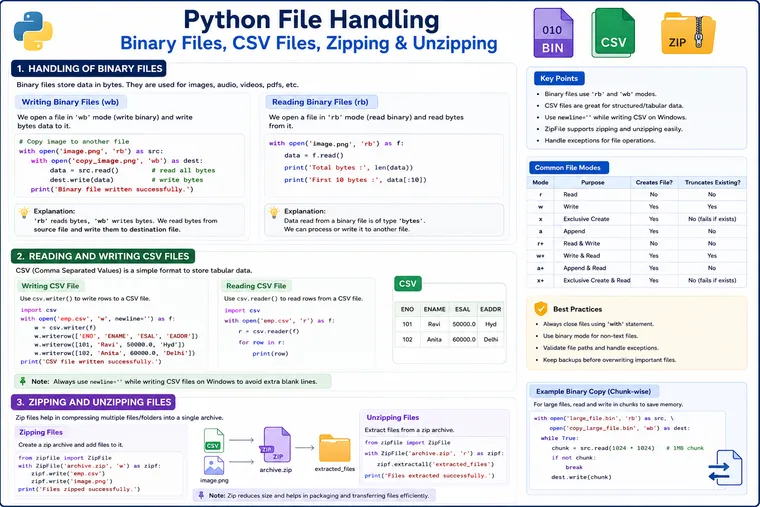
Python Binary Files, CSV Files, Zipping and Unzipping: Practical Guide with Examples
Working with files in Python goes beyond reading and writing text. Real-world applications frequently deal with images, PDFs, videos, CSV datasets, backups, compressed archives, and other non-text data.
Python provides built-in capabilities for handling these different types of data efficiently.
In this article, we’ll understand:
- Binary files
- Reading binary data
- Writing binary data
- Copying binary files
- Reading CSV files
- Writing CSV files
- Creating ZIP archives
- Extracting ZIP archives
- Processing large binary files
- Performance and memory considerations
- Common interview questions
1. What Is a Binary File?
A binary file stores information as bytes rather than human-readable characters.
Examples include:
Images → .jpg, .pngAudio → .mp3, .wavVideo → .mp4Documents → .pdfExecutables → .exeArchives → .zipA text file is generally interpreted as characters:
"Hello Python"A binary file contains raw byte values:
10101010 01101001 11001010 ...Python uses:
rb → read binarywb → write binaryab → append binary2. Reading a Binary File
Let’s read an image as binary data.
with open("image.jpg", "rb") as file:    data = file.read()
print("Data type:", type(data))print("Size:", len(data), "bytes")print("First 10 bytes:", data[:10])
Output
The exact output depends on the image, but conceptually:
Data type: <class 'bytes'>Size: 245678 bytesFirst 10 bytes: b'\xff\xd8\xff\xe0...'How Does It Work?
The important part is:
open("image.jpg", "rb")Here:
r → readb → binaryTherefore:
rb → read binaryThe result of:
file.read()is a bytes object.
This is different from text mode, where Python normally returns a str.
3. Writing a Binary File
Suppose we want to create a binary file.
data = bytes([10, 20, 30, 40, 50])
with open("data.bin", "wb") as file:    file.write(data)
print("Binary data written successfully.")
Here:
w → writeb → binarySo:
wb → write binary4. Practical Example: Copy an Image
One of the easiest ways to understand binary read/write operations is to copy an image.
with open("source.jpg", "rb") as source:    data = source.read()
with open("copy.jpg", "wb") as destination:    destination.write(data)
print("Image copied successfully.")
How it works
source.jpg │ │ rb ▼bytes in memory │ │ wb ▼copy.jpgThe important point is that Python isn’t interpreting the image as text. It reads the raw bytes and writes those bytes to another file.
5. Important Problem: What If the File Is Very Large?
The previous solution is simple:
data = source.read()But imagine:
Video = 10 GBRAM = 8 GBReading the complete file into memory is obviously a bad idea.
Instead, process it in chunks.
with open("large_video.mp4", "rb") as source:    with open("copy_video.mp4", "wb") as destination:
        while True:            chunk = source.read(1024 * 1024)
            if not chunk:                break
            destination.write(chunk)
Here:
1024 * 1024represents approximately:
1 MBat a time.
Memory advantage
Instead of:
Entire file → Memorywe do:
1 MB → Memory ↓Write ↓Discard ↓Next 1 MBFor a file of size N:
Time → O(N)Space → O(K)where K is the selected chunk size.
This is a very important experienced-level interview concept.
6. Reading CSV Files
CSV stands for:
Comma-Separated Values
CSV is commonly used for exchanging tabular information between applications.
For example:
ENO,ENAME,ESAL,EADDR101,Ravi,50000,Hyderabad102,Anita,60000,DelhiPython provides the built-in csv module for this purpose.
The supplied example uses csv.writer() to create employee records and csv.reader() to read them.
7. Writing Data to a CSV File
import csv
with open("employees.csv", "w", newline="", encoding="utf-8") as file:
    writer = csv.writer(file)
    writer.writerow(["ENO", "ENAME", "ESAL", "EADDR"])
    writer.writerow([101, "Ravi", 50000, "Hyderabad"])    writer.writerow([102, "Anita", 60000, "Delhi"])    writer.writerow([103, "Harsha", 75000, "Bangalore"])
print("CSV file created successfully.")
How Does csv.writer() Work?
This:
writer = csv.writer(file)creates a CSV writer object.
Then:
writer.writerow(...)writes one row.
For example:
writer.writerow([101, "Ravi", 50000, "Hyderabad"])produces:
101,Ravi,50000,HyderabadThe supplied example follows the same writerow() approach for employee data.
8. Writing Multiple CSV Rows
When multiple records are available, writerows() is convenient.
import csv
employees = [    [101, "Ravi", 50000, "Hyderabad"],    [102, "Anita", 60000, "Delhi"],    [103, "Harsha", 75000, "Bangalore"]]
with open("employees.csv", "w", newline="", encoding="utf-8") as file:    writer = csv.writer(file)
    writer.writerow(["ENO", "ENAME", "ESAL", "EADDR"])    writer.writerows(employees)
9. Reading CSV Files
import csv
with open("employees.csv", "r", newline="", encoding="utf-8") as file:
    reader = csv.reader(file)
    for row in reader:        print(row)
Output:
['ENO', 'ENAME', 'ESAL', 'EADDR']['101', 'Ravi', '50000', 'Hyderabad']['102', 'Anita', '60000', 'Delhi']['103', 'Harsha', '75000', 'Bangalore']The supplied sample creates a csv.reader and iterates through rows and columns.
10. Why Should We Use the csv Module?
A beginner might manually construct CSV data:
file.write("101,Ravi,50000,Hyderabad\n")That may work for simple data.
But CSV has complications involving:
Commas inside valuesQuotesNewlinesEscapingDifferent delimitersFor example:
101,"Ravi, Kumar",50000,HyderabadManually splitting by comma can produce incorrect results.
Therefore:
csv.reader()csv.writer()should generally be preferred for CSV processing.
11. Why Is newline="" Used?
When writing CSV files, you’ll often see:
open("employees.csv", "w", newline="")This helps the csv module manage newline handling consistently, particularly on Windows.
So this is a good practice:
with open("employees.csv", "w", newline="", encoding="utf-8") as file:12. Creating ZIP Files
A ZIP archive can package multiple files into a single archive.
Python provides:
zipfilefor this purpose.
Example:
from zipfile import ZipFile, ZIP_DEFLATED
with ZipFile("backup.zip", "w", ZIP_DEFLATED) as archive:
    archive.write("employees.csv")    archive.write("image.jpg")
print("Files zipped successfully.")
The resulting structure is conceptually:
employees.csv ──┐ ├──> backup.zipimage.jpg ──────┘13. Extracting a ZIP File
To extract the contents:
from zipfile import ZipFile
with ZipFile("backup.zip", "r") as archive:
    archive.extractall("extracted_files")
print("Files extracted successfully.")
After extraction:
extracted_files/│├── employees.csv└── image.jpg14. Listing Files Inside a ZIP
Before extracting everything, you may want to inspect the archive.
from zipfile import ZipFile
with ZipFile("backup.zip", "r") as archive:
    print(archive.namelist())
Output:
['employees.csv', 'image.jpg']This is useful when an application receives an archive and needs to inspect its contents before processing them.
15. ZIP: When Should We Use It?
ZIP archives are useful for:
- Backups
- File transfers
- Packaging multiple files
- Reducing size of compressible data
- Sending multiple files as one archive
- Archiving old files
For example:
Reports   ├── sales.csv   ├── employees.csv   ├── summary.txt   └── chart.png
       ↓ ZIP
reports.zip
16. Binary Files vs CSV vs ZIP
| Requirement | Suitable Approach |
|---|---|
| Image | Binary |
| Video | Binary |
| Binary | |
| Audio | Binary |
| Employee table | CSV |
| Data exchange | CSV |
| Multiple files as one package | ZIP |
| Backup archive | ZIP |
| Large binary transfer | Binary + chunking |
17. Common Interview Questions
Q1. What is the difference between r and rb?
r → text moderb → binary moder generally returns str.
rb returns bytes.
Q2. Why shouldn’t you read a 10 GB file using read()?
Because it can require approximately O(n) memory for the file contents.
Use streaming or chunk-based processing instead.
Q3. Why is bytes used for binary files?
Because binary data consists of raw byte values rather than decoded text characters.
Q4. Why use csv.reader() instead of split(",")?
Because CSV has quoting, delimiters, escaping, and newline rules that simple string splitting doesn’t handle correctly.
Q5. What is the difference between writerow() and writerows()?
writerow() → one rowwriterows() → multiple rows18. Performance Considerations
For a file of size N:
Binary read
read() → O(N) timeand approximately:
O(N) additional memoryif the entire content is retained.
Chunked processing
Time → O(N)Space → O(K)where K is the chunk size.
CSV
If N represents the amount of CSV data processed:
Reading → O(N)Writing → O(N)The actual runtime depends on disk speed, buffering, parsing, encoding, and system load.
19. Best Practices
Use context managers
with open(...) as file:instead of manually managing resources whenever practical.
Use binary mode for binary data
rbwbabUse the CSV module
csv.reader()csv.writer()Process large files incrementally
for line in file:or:
file.read(chunk_size)Handle exceptions
try: ...except FileNotFoundError: ...except PermissionError: ...Final Takeaway
Binary files, CSV files, and ZIP archives solve different problems.
Think about them like this:
Binary  ↓Raw bytes  ↓Images / Videos / PDFs / Audio
CSV  ↓Structured rows and columns  ↓Data exchange / Reports
ZIP  ↓Package + Compress  ↓Backup / Transfer / Distribution
The most important production-level lesson is:
Don’t confuse “the file can be read” with “the file should be loaded entirely into memory.”
For small files, read() is convenient. For large files, streaming and chunk-based processing are usually much safer.