 Sho
Sho4. Python Directory Operations, File Statistics and os.system()
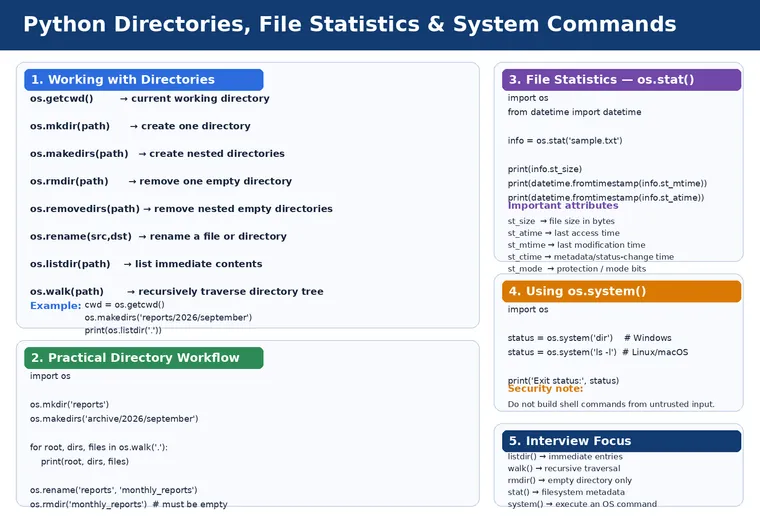
Python Directory Operations, File Statistics and os.system(): Practical Guide
File handling doesn’t stop at reading and writing data.
Real applications also need to:
- Find the current working directory
- Create folders
- Create nested folder structures
- List files
- Traverse directory trees
- Rename files and directories
- Delete directories
- Inspect file metadata
- Execute operating-system commands
Python’s os module provides many of these capabilities.
In this article, we’ll explore these operations through practical programs and understand how they work, when to use them, and what interviewers expect from an experienced Python developer.
The supplied directory examples specifically demonstrate getcwd(), mkdir(), makedirs(), rmdir(), removedirs(), listdir(), and walk().
1. What Is the Current Working Directory?
The current working directory, or CWD, is the directory from which the Python process is currently operating.
Use:
import os
current_directory = os.getcwd()
print("Current Working Directory:", current_directory)
Example output:
Current Working Directory:C:\Projects\PythonAppThe supplied example uses os.getcwd() for exactly this purpose.
2. Why Is getcwd() Important?
Consider:
open("data.txt")Where will Python look for data.txt?
Normally, a relative path is resolved from the process’s current working directory.
For example:
C:\Projects\PythonApp│├── app.py└── data.txtIf the CWD is:
C:\Projects\PythonAppthen:
open("data.txt")looks there.
This is why understanding the current working directory is important when debugging:
FileNotFoundError3. Creating a Directory Using mkdir()
To create a single directory:
import os
os.mkdir("reports")
print("Directory created successfully.")
This creates:
current_directory/└── reports/The supplied example uses os.mkdir() to demonstrate creating one directory.
Important
If the directory already exists, os.mkdir() raises an exception.
For application code, you may want:
try: os.mkdir("reports")except FileExistsError: print("Directory already exists.")4. Creating Nested Directories Using makedirs()
Suppose you need:
project/└── data/ └── reports/ └── 2026/You can use:
import os
os.makedirs("project/data/reports/2026")
makedirs() creates intermediate directories as necessary.
The supplied example demonstrates this behavior with a nested directory structure.
mkdir() vs makedirs()
This is a common interview question.
mkdir()
Creates one directory:
os.mkdir("reports")makedirs()
Can create the complete nested path:
os.makedirs("project/data/reports")Think:
mkdir()   ↓One level
makedirs()   ↓Multiple levels
5. Listing Directory Contents with listdir()
Use:
import os
items = os.listdir(".")
print(items)
This returns the entries in the specified directory.
Example:
['app.py', 'data.txt', 'reports', 'config.json']The supplied directory example uses os.listdir() and assigns its result to a variable for inspection.
6. listdir() Does Not Recursively Traverse Everything
Consider:
project/│├── app.py├── data.txt│└── reports/ ├── january.csv └── february.csvIf you run:
os.listdir("project")you get immediate entries such as:
app.pydata.txtreportsIt doesn’t automatically return:
january.csvfebruary.csvinside reports.
This distinction is explicitly highlighted in the supplied example.
7. Traversing a Directory Tree with os.walk()
When you need recursive traversal:
import os
for dirpath, dirnames, filenames in os.walk("."):    print("Directory:", dirpath)    print("Directories:", dirnames)    print("Files:", filenames)    print("-" * 40)
The supplied program demonstrates the same dirpath, dirnames, and filenames pattern.
How os.walk() Works
Imagine:
project/│├── app.py│├── data/│ ├── users.csv│ └── products.csv│└── logs/ └── application.logos.walk() progressively visits:
project/data/logs/and provides:
dirpathdirnamesfilenamesfor each directory.
Conceptually:
Directory │ ├── Subdirectories │ └── Files │ ▼ process8. listdir() vs walk()
| Feature | listdir() | walk() |
|---|---|---|
| Lists directory entries | Yes | Yes |
| Recursive traversal | No | Yes |
| Returns directory names | Mixed entries | Yes |
| Returns file names | Mixed entries | Yes |
| Suitable for directory tree processing | Limited | Excellent |
Interview answer
“
listdir()gives the entries of a directory, whileos.walk()recursively traverses the directory tree and gives directory paths, subdirectories, and files.”
9. Removing a Directory Using rmdir()
import os
os.rmdir("reports")
But there’s an important condition:
The directory must be empty.
For example:
reports/└── data.csvThen:
os.rmdir("reports")will fail.
You must first remove the contents.
The supplied example explicitly notes that the directory must be empty for rmdir() to work.
10. Removing Nested Directories with removedirs()
Suppose:
project/└── data/ └── reports/If these directories are empty:
import os
os.removedirs("project/data/reports")
Python can remove the empty directory path upward where possible.
The supplied example uses removedirs() for nested directories.
Important distinction
rmdir()    ↓One directory
removedirs()    ↓Nested empty directory path
11. Renaming Files and Directories
Python provides:
os.rename(source, destination)Example:
import os
os.rename("old_report.txt", "new_report.txt")
It can also be used for directories:
os.rename("old_reports", "new_reports")A useful practical example:
import os
if os.path.exists("report.txt"):    os.rename("report.txt", "report_old.txt")
12. Practical Directory Management Program
Let’s combine several operations.
import os
# 1. Current directorycwd = os.getcwd()print("Current Directory:", cwd)
# 2. Create one directoryos.mkdir("reports")
# 3. Create nested directoriesos.makedirs("archive/2026/september")
# 4. List current directoryprint("Directory Contents:")print(os.listdir("."))
# 5. Traverse directory treeprint("\nDirectory Tree:")
for dirpath, dirnames, filenames in os.walk("."):    print("Path:", dirpath)    print("Directories:", dirnames)    print("Files:", filenames)
# 6. Rename directoryos.rename("reports", "monthly_reports")
print("\nDirectory renamed successfully.")
# 7. Remove empty directoryos.rmdir("monthly_reports")
This combines the core operations demonstrated in the supplied directory examples.
13. File Statistics Using os.stat()
Sometimes knowing that a file exists isn’t enough.
We may need to know:
File sizeLast access timeLast modification timeMetadata change timePermissions/modeInode informationOwner/group informationPython provides:
os.stat()The supplied statistics example uses os.stat() and accesses attributes such as st_size, st_atime, st_mtime, and st_ctime.
14. Basic os.stat() Example
import os
statistics = os.stat("sample.txt")
print("File Statistics:")print(statistics)
You may see a result similar to:
os.stat_result( st_mode=33188, st_ino=12345, st_dev=64768, st_nlink=1, st_uid=1000, st_gid=1000, st_size=1024, st_atime=... st_mtime=... st_ctime=...)The exact values depend on the operating system and file.
15. Understanding Important stat() Attributes
st_size
print(statistics.st_size)Returns the file size in bytes.
For example:
1024means approximately:
1 KBin decimal/binary terminology depending on how you’re interpreting the size.
st_mtime
statistics.st_mtimeRepresents the file’s last modification timestamp.
Convert it into a readable date:
from datetime import datetime
modified_time = datetime.fromtimestamp(statistics.st_mtime)
print("Last Modified:", modified_time)
The supplied example demonstrates converting timestamps using datetime.fromtimestamp().
st_atime
Represents the last access timestamp.
access_time = datetime.fromtimestamp(    statistics.st_atime)
print("Last Accessed:", access_time)
st_ctime
This one requires an important platform distinction.
On Unix-like systems, st_ctime generally represents the last metadata/status change time.
On Windows, its meaning is commonly associated with file creation time.
Therefore, don’t simply say:
“
st_ctimeis always creation time.”
That’s an important experienced-level interview correction.
16. Complete File Statistics Program
import osfrom datetime import datetime
file_path = "sample.txt"
statistics = os.stat(file_path)
print("File Size:", statistics.st_size, "bytes")
print(    "Last Accessed:",    datetime.fromtimestamp(statistics.st_atime))
print(    "Last Modified:",    datetime.fromtimestamp(statistics.st_mtime))
print(    "Metadata/Status Change:",    datetime.fromtimestamp(statistics.st_ctime))
17. Real-World Use Case for os.stat()
Imagine an application that processes uploaded documents.
You may want to check:
File exists? ↓File size? ↓Last modified? ↓Process fileFor example:
import os
file_path = "upload/report.pdf"
if os.path.isfile(file_path):
    info = os.stat(file_path)
    print("Size:", info.st_size)
    if info.st_size > 10 * 1024 * 1024:        print("File is larger than 10 MB.")
This can be useful for:
- Upload validation
- Monitoring
- Backup systems
- File synchronization
- Data pipelines
- Storage management
18. Executing Operating System Commands with os.system()
Python also provides:
os.system()which can execute a command through the operating system shell.
Example:
import os
status = os.system("dir")
print("Exit Status:", status)
On Linux/macOS:
status = os.system("ls -l")19. Understanding the Return Value
Consider:
status = os.system("dir")The command is executed and a status value is returned.
You can inspect it:
print(status)A successful command generally results in a success-related exit status, but the exact representation can vary by platform.
Important
os.system() is generally not the preferred modern API for complex subprocess interaction.
For serious applications, Python’s subprocess module provides significantly better control over:
- Arguments
- Standard input
- Standard output
- Standard error
- Exit codes
- Environment variables
- Process execution
20. Why Should We Be Careful with os.system()?
Never construct a shell command directly from untrusted input.
For example, avoid patterns like:
filename = input("Enter filename: ")
os.system("cat " + filename)
The input may contain shell syntax.
For safer command execution, prefer:
import subprocess
subprocess.run(    ["ls", "-l"],    check=True)
or an equivalent platform-appropriate command.
The important security principle is:
Never allow untrusted input to become executable shell syntax.
21. os.system() vs subprocess
| Requirement | os.system() | subprocess |
|---|---|---|
| Simple command | Possible | Yes |
| Capture output | Limited | Excellent |
| Pass arguments safely | Poorer | Better |
| Handle errors | Limited | Better |
| Control stdin/stdout/stderr | Limited | Yes |
| Production process control | Not ideal | Preferred |
Interview answer
If an interviewer asks:
“Would you use
os.system()in a production application?”
A strong answer is:
“For very simple legacy or scripting scenarios it can work, but for production process execution I would generally prefer
subprocessbecause it provides better control over arguments, output, errors, exit status, and security.”
22. Complete Directory + Statistics Example
Let’s combine directory discovery and file statistics.
import osfrom datetime import datetime
root_directory = os.getcwd()
for dirpath, dirnames, filenames in os.walk(root_directory):
    print("\nDirectory:", dirpath)
    for filename in filenames:
        file_path = os.path.join(            dirpath,            filename        )
        try:            info = os.stat(file_path)
            print(                "File:",                filename,                "| Size:",                info.st_size,                "bytes",                "| Modified:",                datetime.fromtimestamp(info.st_mtime)            )
        except OSError as error:            print(                "Unable to access:",                file_path,                "| Error:",                error            )
This is a much more realistic example.
It:
- Gets the current directory.
- Recursively traverses directories.
- Finds files.
- Builds their paths.
- Retrieves metadata.
- Prints size and modification time.
- Handles filesystem errors.
23. os.path vs pathlib
For modern Python development, you will frequently see:
from pathlib import Pathinstead of using os.path everywhere.
For example:
from pathlib import Path
path = Path("sample.txt")
if path.is_file():    print("File exists")
print("Size:", path.stat().st_size)
Directory creation:
Path("reports").mkdir(exist_ok=True)Nested directory creation:
Path("archive/2026/september").mkdir( parents=True, exist_ok=True)pathlib often produces cleaner, more readable path-oriented code.
However, understanding os remains important because it is widely used in existing Python codebases and interviews.
24. Common Interview Questions
Q1. Difference between mkdir() and makedirs()?
mkdir()    → creates one directory
makedirs()    → creates nested directories
Q2. Difference between rmdir() and removedirs()?
rmdir()    → removes one empty directory
removedirs()    → removes a nested path of empty directories
Q3. Difference between listdir() and walk()?
listdir()    → immediate directory contents
walk()    → recursive directory traversal
This distinction is explicitly demonstrated in the supplied sample.
Q4. What does os.stat() return?
It returns filesystem metadata about a path.
Q5. What does st_size represent?
File size in bytes.
Q6. What does st_mtime represent?
The last modification timestamp.
Q7. What is st_atime?
The last access timestamp.
Q8. What is os.system()?
It executes a command through the operating system shell and returns a status value.
Q9. What should you use instead of os.system() for production process execution?
Generally:
subprocessbecause it provides better control and safer argument handling.
25. Performance Considerations
Most directory and metadata operations are not primarily CPU-intensive.
For example:
os.stat(path)is generally treated as approximately:
Time → O(1)Space → O(1)for one path lookup, while actual performance depends on the filesystem and storage.
For:
os.listdir(path)the cost depends on the number of directory entries.
If there are N entries:
Time → approximately O(N)For:
os.walk(path)the total work grows with the number of directories and files traversed.
Conceptually:
Time → O(total entries visited)The practical cost also depends on filesystem metadata operations, permissions, network filesystems, and storage latency.
26. When Should You Use These Operations?
getcwd()
Use when:
- Debugging relative paths
- Building CLI utilities
- Determining execution context
mkdir()
Use when:
- Creating one directory
makedirs()
Use when:
- Creating nested directory structures
listdir()
Use when:
- You need immediate directory contents
walk()
Use when:
- Searching directory trees
- Building file indexes
- Processing all files recursively
- Backup utilities
stat()
Use when:
- Checking file size
- Monitoring modification time
- Building synchronization systems
- Performing file metadata analysis
system()
Use cautiously when:
- A simple OS command is genuinely required
For application-level process execution, prefer subprocess.
27. Final Architecture to Remember
A practical file-processing application may look like:
Application │ ▼Find Working Directory │ ▼Discover Files │ ├── listdir() │ └── walk() │ ▼Inspect Metadata │ └── stat() │ ▼Process Files │ ▼Archive / Backup │ └── ZIPThis connects filesystem operations with real-world application development.
Final Takeaway
The os module provides a bridge between Python and the operating system.
You should be comfortable with:
os.getcwd()os.mkdir()os.makedirs()os.rmdir()os.removedirs()os.rename()os.listdir()os.walk()os.stat()os.system()But experienced Python developers should also understand why and when to use each one.
The most important interview distinctions are:
mkdir()    → one directorymakedirs() → nested directories
rmdir()    → empty directoryremovedirs() → nested empty directories
listdir()  → immediate contentswalk()     → recursive traversal
stat()     → filesystem metadata
system()   → execute OS commandsubprocess → preferred for controlled process execution
And for modern Python development, also remember:
from pathlib import Pathbecause pathlib often provides a cleaner API for filesystem paths.